Learning how to use Catalog Avatar Creator feels overwhelming when you first spawn into the plaza, but the core loop is surprisingly simple: try on items, save outfits, and share codes. This Catalog Avatar Creator beginner guide cuts through the noise so you can build your first clean look in under ten minutes without spending a single Robux. The editor won the Best Use of Fashion Roblox Innovation Award in 2023 and again in 2024, which means you are stepping into one of the most polished avatar tools on the platform. If you are customizing on a phone or tablet, the same clean editing workflow carries over to touch controls, so you can follow the Mobile Guide to keep your avatar looking sharp while you are away from a desktop.
Understanding the Catalog Avatar Creator Interface
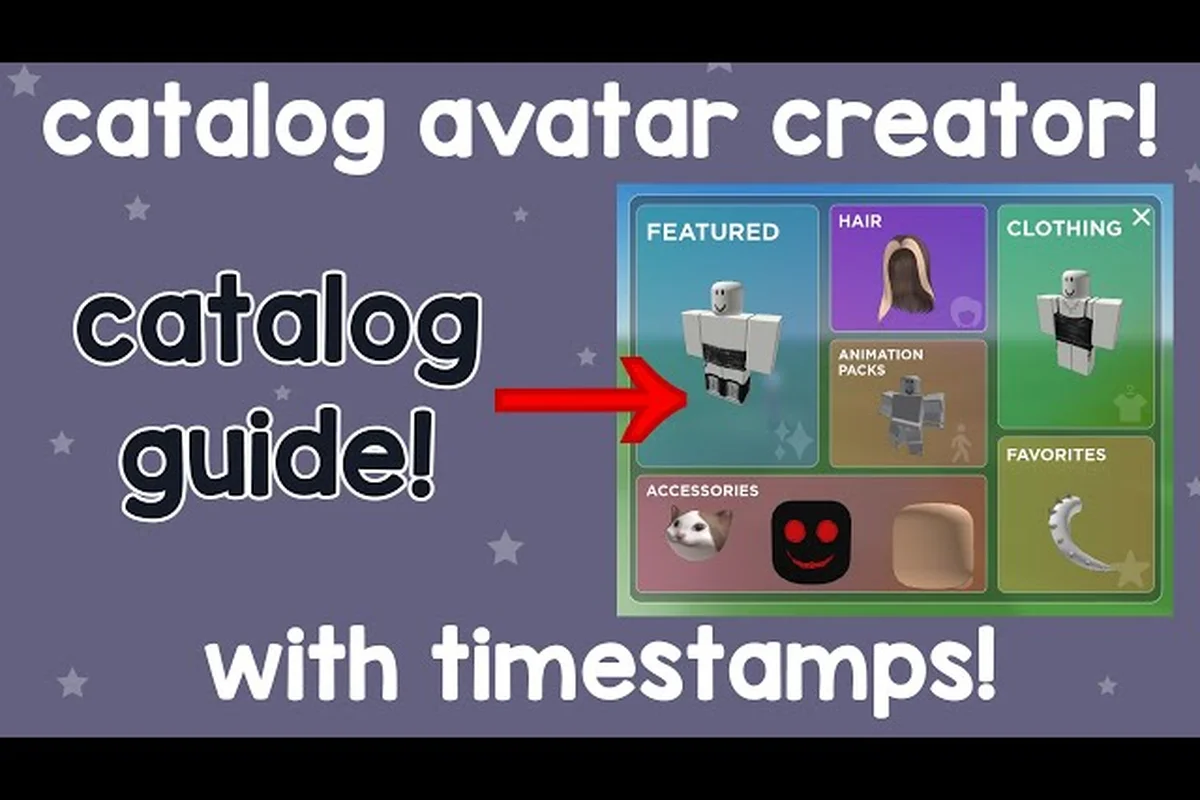
When you load into the game, you land in a large plaza with several floating panels and a central avatar preview. The main interface splits into three zones: the catalog browser on the left, the avatar preview in the center, and the outfit controls on the right. According to the official Roblox game page, the experience lets you try on over 50 million community-created outfits alongside individual catalog items like accessories, hats, limiteds, hair combos, bundles, and animation packs.
The catalog browser works like a search engine for every wearable item on Roblox. You can type a keyword such as "glasses" or "top hat" into the search bar, then filter results by price, category, or creator. The price filter is the single most important tool for new players because it lets you set the maximum cost to zero Robux, instantly surfacing thousands of free items that you can try on without any risk.
Navigating the Main Panels
The left panel contains your search bar and filter toggles. Below that sits a scrollable grid of item thumbnails, each showing the item name, creator, and price tag. Clicking any thumbnail immediately equips that item onto your avatar preview, which updates in real time. The center panel shows your current avatar from multiple angles, and you can rotate the camera by holding right-click and dragging.
The right panel holds your save slots, the outfit code entry box, and the favorite items list. You can save up to multiple outfit presets, each storing a complete combination of clothing, accessories, and animation packs. The randomize button near the top of the right panel shuffles your entire look, which is a great way to discover item combinations you would never think to try manually.
Key Interface Terms for New Players
| Term | What It Does | Why Beginners Need It |
|---|---|---|
| Catalog Browser | Searchable list of all Roblox catalog items | Find specific pieces without scrolling endlessly |
| Price Filter | Sets a maximum Robux cost for displayed items | Discover free looks instantly |
| Outfit Code | A short string that loads a complete saved outfit | Copy community styles in one click |
| Favorite List | Bookmarks items for later purchase or use | Track pieces you want but cannot afford yet |
| Save Slot | Stores your current avatar combination | Switch between looks without rebuilding |
The interface may feel dense at first, but every panel serves one purpose: helping you move from browsing to saving as quickly as possible. Spend five minutes clicking through each zone before you start building, because knowing where the price filter and save button live will save you repeated frustration later.
Entering Outfit Codes to Load Community Looks
Outfit codes are the fastest way to get a polished avatar without understanding how individual items work together. A code is a short string of characters that, when entered into the outfit code box, loads a complete outfit that another player designed and published. According to the official Catalog Avatar Creator website, the game hosts over 50 million community-created outfits, which means there is essentially an infinite supply of ready-made looks waiting for you.
To enter a code, open the outfit-code menu from the main interface, paste or type the code into the text field, and press enter. The game then previews the full outfit on your avatar so you can see exactly what you are loading before committing. From there you can choose to save the outfit to one of your slots or buy the items if you want them permanently in your Roblox inventory.
Where to Find Working Outfit Codes
The best sources for fresh outfit codes are the official Discord server, YouTube comment sections, and community groups. The official Catalog Avatar Creator Discord has roughly 219,000 members who share new codes daily, announce catalog drops, and discuss UGC store strategies. YouTube creators like GuideRealm publish step-by-step tutorials showing exactly where to paste codes and how to preview them before saving.
Here is a simple workflow for finding and using codes:
-
Join the official Discord server and check the outfit-code channel for daily posts
-
Watch recent YouTube tutorials that include codes in the description or comments
-
Copy a code, return to the game, and paste it into the outfit-code box
-
Preview the loaded outfit and decide whether to save or skip it
-
Favorite any individual items from the outfit that you want to track
Code Entry Troubleshooting
| Problem | Likely Cause | Fix |
|---|---|---|
| Code does nothing | Typo or extra space | Re-copy the code and paste without formatting |
| Outfit loads but items missing | Some items were removed from catalog | Save the remaining pieces and rebuild manually |
| Code is expired | Creator unpublished the outfit | Find a newer code from the Discord or YouTube |
| Preview shows default avatar | Code format not supported | Check that you are using the outfit-code box, not the search bar |
Codes are case-sensitive in some versions of the game, so always copy them exactly as posted. If a code fails, do not assume the feature is broken; most failures come from invisible spaces or characters that sneak in when copying from a web page.
Using the Price Filter to Build Free Outfits
The price filter is the single most powerful tool in this Catalog Avatar Creator beginner guide because it unlocks the entire free catalog. When you set the maximum price to zero Robux, the browser hides every paid item and shows only pieces you can try on and save without spending anything. This transforms the game from a shopping simulator into a pure styling sandbox where experimentation costs nothing.
According to community data from the official Discord, most experienced players start their sessions by setting the price filter to zero and browsing recent free drops. Creators release free accessories, hats, and even full bundles regularly, so the free catalog refreshes constantly. You can build a complete, stylish avatar using only free items if you are willing to dig through a few pages of results.
Step-by-Step Free Outfit Workflow
Building a free outfit follows a repeatable loop that gets faster with practice. Start with a broad search term like "hair" or "jacket," apply the zero-Robux filter, and scroll until something catches your eye. Click items to preview them instantly, and when a piece works, favorite it so you can find it again later.
The workflow looks like this:
-
Set the price filter to 0 Robux before searching anything
-
Search broad categories first: hair, face, shirt, pants, accessory
-
Click through at least ten items per category to understand what is available
-
Favorite any piece that fits your style, even if you do not use it immediately
-
Combine your favorite free pieces into a full outfit and save it to a slot
Free Item Categories Worth Browsing
| Category | What You Can Find | Beginner Tip |
|---|---|---|
| Hair Combos | Full hairstyles with multiple color options | Search "hair combo" and sort by newest |
| Accessories | Hats, glasses, necklaces, wings | Use the price filter to find free limiteds |
| Bundles | Complete outfits with matching pieces | Load one bundle to skip manual matching |
| Animation Packs | Walk, run, and idle animations | Preview animations by equipping and moving |
| Faces | Expressions and head designs | Try faces last since they change your avatar's vibe most |
Free items are not lower quality than paid ones; many creators release free versions of their paid designs as promotional tools. The key is consistency: check the free catalog regularly because new drops appear daily and the best pieces get favorited quickly by other players.
Saving, Favoriting, and Publishing Your Own Outfits
Once you build a look you like, you need to save it before you leave the game or your progress disappears. The save slot system stores complete outfits locally in the experience, letting you switch between multiple looks without rebuilding them from scratch. You can also favorite individual items to bookmark them for later purchase, which is useful when you find a paid piece you want but cannot afford yet.
Publishing an outfit takes saving one step further by generating a shareable code that other players can use to load your creation. According to the official website, the game lets you open your own free UGC store, which means your published outfits can become part of the 50 million plus community looks already available. Publishing is free and takes only a few clicks once your outfit is complete.
How to Favorite Items Efficiently
Favoriting works like a wishlist. When you see an item you like but do not want to equip right now, click the favorite button on its thumbnail. The item then appears in your favorite list, which you can access from the right panel at any time. This is especially useful for paid items that you plan to buy later or for free items you want to remember for future outfits.
The favorite system also helps you track creators. If you find a designer whose style matches yours, favorite several of their items, then browse their full catalog from the creator page. Community reports suggest that following consistent creators leads to better outfit cohesion than mixing random pieces from different designers.
Saving vs. Publishing vs. Buying
| Action | What It Does | When to Use It |
|---|---|---|
| Save Outfit | Stores your current look in a local slot | Every time you finish a look you like |
| Favorite Item | Bookmarks a single piece for later | When you find something you might want |
| Publish Outfit | Generates a shareable code for others | When you want to contribute to the community |
| Buy Item | Adds the piece to your permanent Roblox inventory | When you want to use the item in other games |
The distinction between saving and buying matters because saved outfits only exist inside Catalog Avatar Creator. If you want to wear your creation in other Roblox experiences, you need to actually purchase the items so they appear in your Roblox inventory. The official Roblox game page confirms that all in-game purchases become available across the entire platform.
Advanced Tips for Faster Styling
Once you understand the basic loop of searching, trying, and saving, you can speed up your workflow with a few advanced habits. The bulk purchasing feature, added in a recent update, lets you buy multiple items at once instead of clicking through each purchase individually. This is a massive time-saver when you find a creator whose entire catalog you want to own.
The randomize button is another underrated tool. Instead of manually searching for pieces, you can shuffle your entire avatar and see combinations you would never assemble yourself. When the randomizer lands on something interesting, favorite the individual pieces immediately so you can rebuild the look later. Many players report discovering their favorite accessories through random shuffles rather than deliberate searching.
Building a Personal Style System
Developing a consistent style requires more than random experimentation. Start by identifying two or three keywords that describe the look you want, such as "minimal streetwear" or "fantasy mage." Then search those keywords with the price filter set to zero and favorite every item that fits the theme. Over time, your favorite list becomes a curated personal catalog that makes future outfit building dramatically faster.
The creator follow system amplifies this effect. When you find a designer whose work consistently matches your style, follow them and check their new releases regularly. Community reports from the official Discord suggest that players who follow at least five creators build outfits three times faster than those who browse the general catalog randomly.
Speed Comparison: Manual vs. Systematic Styling
| Workflow Step | Manual Approach | Systematic Approach |
|---|---|---|
| Finding items | Random scrolling through catalog | Filtered search with price and category |
| Trying combinations | Equip one piece at a time | Use randomize button, then refine |
| Tracking favorites | Memory or screenshots | Favorite list with creator follows |
| Building outfits | Start from scratch each time | Load a code, then swap individual pieces |
| Buying items | Single purchases | Bulk purchasing feature |
The systematic approach takes a little setup but pays off within your first few sessions. The goal is to spend less time searching and more time styling, which is exactly what this Catalog Avatar Creator new player guide is designed to help you achieve.
Frequently Asked Questions
Is Catalog Avatar Creator free to play?
Yes, the game is completely free to play. You can browse millions of items, try on anything, and save outfits without spending Robux. The price filter lets you restrict results to zero-Robux items, so building a full avatar costs nothing unless you choose to buy pieces for use in other Roblox games.
How do I enter an outfit code?
Open the outfit-code menu from the main interface, paste or type the code into the text field, and press enter. The game previews the full outfit on your avatar before you commit. You can then save it to a slot or buy the items. Codes are case-sensitive, so copy them exactly as posted.
Can I use my saved outfits in other Roblox games?
Only if you purchase the individual items. Saved outfits exist only inside Catalog Avatar Creator, but buying items adds them to your permanent Roblox inventory. According to the official Roblox game page, all in-game purchases become available across the entire platform, so your style carries over to every experience.
Where can I find new outfit codes?
The official Discord server with roughly 219,000 members is the fastest source, with players sharing new codes daily. YouTube tutorials and community groups also post codes regularly. Check the outfit-code channel on Discord first, then fall back to recent YouTube videos if you need more options.
How do I favorite items for later?
Click the favorite button on any item thumbnail to bookmark it. Your favorite list appears in the right panel and works like a wishlist for pieces you want to track or buy later. Favoriting also helps you follow creators whose style matches yours, which speeds up future outfit building significantly.