
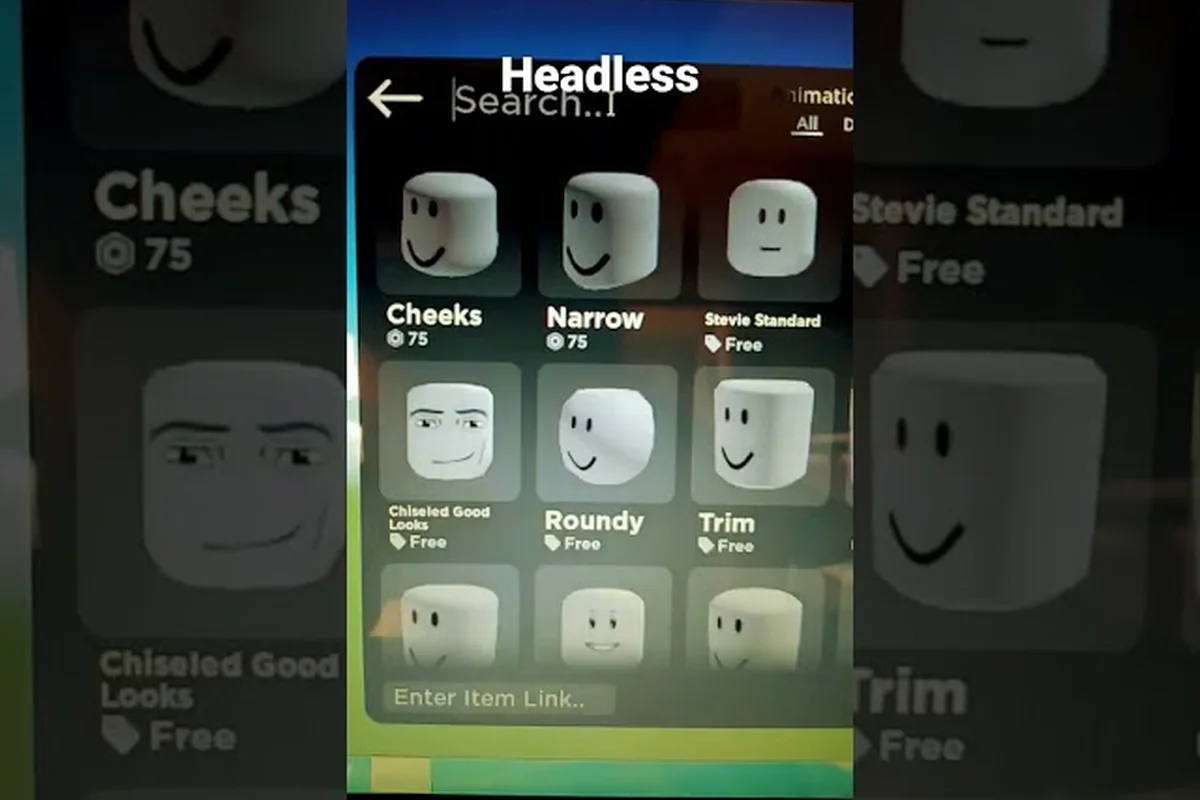
Your avatar's frame is built from four swappable parts: heads, torsos, arms, and legs. Getting these proportions right changes how every outfit fits and how your entire silhouette reads in-game. This guide breaks down each body part, compares R15 vs R6 rigs, and shows you where to find the rarest headless pieces.
Understanding Catalog Avatar Creator Heads
The head is the most expressive part of your avatar, and Catalog Avatar Creator heads come in dozens of shapes, from classic blocky styles to smooth, realistic sculpts. When you swap a head, you are not just changing the face — you are also changing how hats, hair, and accessories sit on top of it. A head with a wider cranium will stretch beanies and helmets differently than a narrow, oval-shaped head.
Community data from the official experience page confirms that heads can be swapped individually without affecting your torso, arms, or legs. This means you can pair a realistic head with a blocky R6 body for a deliberately mismatched look, or keep everything uniform for a cleaner silhouette. The key is understanding that the head sets the visual anchor for your entire avatar.
Popular Head Categories
Players generally group heads into three broad buckets based on how they interact with accessories: hat-compatible heads, face-accessory heads, and headless or minimal heads. The first bucket covers heads with clearly defined top surfaces that accept the widest range of Catalog Avatar Creator hats and hair meshes without clipping. The second bucket favors heads with flat or recessed facial planes, where glasses, masks, and visors sit flush instead of floating. The third bucket — often paired with Catalog Avatar Creator headless builds — trades accessory compatibility entirely for silhouette tricks, since removing the head mesh lets torso and arm accessories read as the character's primary visual anchor.
| Head Category | Visual Profile | Best Paired With |
|---|---|---|
| Classic Blocky | Sharp edges, low polygon count | R6 bodies, retro outfits |
| Smooth Realistic | Rounded features, higher detail | R15 bodies, modern clothing |
| Headless Variants | No visible head mesh | Any body, floating accessory looks |
Catalog Avatar Creator headless pieces are among the most sought-after parts in the entire experience. Because there is no visible head mesh, hats and hair appear to float, which creates a striking visual that stands out in crowded lobbies. Players report that headless variants tend to be rarer drops or limited catalog items, which drives up their perceived value in trading communities.
How to Swap Heads Correctly
Swapping a head is straightforward, but the order matters if you want accessories to behave. First, remove any hats or hair that are anchored to the current head. Then select the new head from your inventory. Finally, reapply accessories and check for clipping — especially around the jawline and ears. If you are working with a headless variant, skip the accessory check entirely, since there is no mesh to clip against.
For more detailed head shape comparisons, the head shapes guide covers sliders and proportion adjustments in depth. This is especially useful when pairing a custom head with different Catalog Avatar Creator torsos, since neck width and jawline sliders affect how seamlessly the head sits on R15 versus R6 body rigs — a mismatch here can leave a visible gap at the collar even when both parts use the same skin tone.
Catalog Avatar Creator Torsos and Silhouette Control
Catalog Avatar Creator torsos are the single biggest lever for changing your avatar's overall frame. A wide torso makes your character read as bulky and imposing, while a narrow torso creates a lean, agile look. Because the torso connects to both arms and legs, changing its proportions affects how clothing textures stretch across the chest, back, and waist.
The official experience page notes that changing proportions — tall, short, muscular, thin — dramatically changes how clothing fits. This is especially true for torso scaling, where a longer torso shifts the waistline and changes where pants visually end. Players who ignore torso proportions often end up with outfits that look stretched or pinched at the seams.
Torso Proportion Cheat Sheet
Use this table to match torso styles with the silhouette you want, but keep in mind that R6 torsos sit higher on the blocky R6 body rig, which makes the head appear larger and closer to the shoulders — ideal for chibi or mascot-style Catalog Avatar Creator heads like the default smiley or blocky animal faces. In contrast, R15 torsos stretch the neck and shoulder line downward, so taller, narrower heads (such as the headless-style floating accessory setups or slim anime head meshes) read more naturally against the elongated proportions. If you are pairing a classic R6 torso with a modern R15 head, expect a visible gap or clipping at the neck seam unless you offset the head attachment by roughly 0.1–0.2 studs in the Catalog Avatar Creator rig editor.
| Torso Style | Visual Effect | Clothing Fit Impact |
|---|---|---|
| Wide / Muscular | Broad shoulders, bulky chest | Stretches shirts, fills jackets |
| Narrow / Thin | Slim waist, compact frame | Loose fit, relaxed drape |
| Tall / Elongated | Longer midsection | Shifts waistline, lengthens torso graphics |
| Short / Compact | Squat, dense core | Crops shirts, tightens midsection |
The muscular torso option is popular for superhero or action-oriented avatars, while the thin torso works well for stealthy or agile character concepts. Because the torso is the visual bridge between your head and legs, getting this proportion right makes the entire avatar feel cohesive rather than pieced together.
Matching Torsos with Leg Length
One common mistake is pairing a long torso with short legs, which creates a top-heavy look that feels unbalanced. Instead, think of your avatar as a ratio: the torso should occupy roughly 40-50% of your total height for a natural humanoid proportion. If you want a stylized look — like a chibi or cartoonish character — you can push the torso to 55% or more, but be aware that some clothing items will not scale cleanly at extreme values.
The body proportions guide explains how to fine-tune these ratios with sliders and scale tools, which is especially useful when pairing a Catalog Avatar Creator head with a short R6 torso — the default head scale often looks oversized on compact R6 builds, so reducing head width to roughly 85–90% of the torso's shoulder span restores visual balance. For R15 rigs, the same guide shows how leg-length adjustments shift the avatar's center of mass, which changes how the neck joint sits relative to the head and can make a headless or masked look read as either hunched or upright depending on your slider values.
Catalog Avatar Creator Arms and Legs: Joints and Motion
Catalog Avatar Creator arms and Catalog Avatar Creator legs do more than define your limb length — they determine how your avatar animates. In R15 rigs, arms and legs are split into upper and lower segments with joints at the elbow and knee. In R6 rigs, each limb is a single rigid piece with no mid-limb articulation. This difference is the core of the Catalog Avatar Creator R15 vs R6 debate.
When you swap arms or legs, you are also swapping the joint behavior that comes with them. R15 arms bend naturally at the elbow, which makes waving, holding tools, and running look fluid. R6 arms stay straight, which gives a classic, blocky animation style that many veteran players prefer for nostalgia or comedic effect.
R15 vs R6 Limb Comparison
| Feature | R15 Limbs | R6 Limbs |
|---|---|---|
| Joint Count | 15 total body joints | 6 total body parts |
| Elbow / Knee Bending | Yes, natural articulation | No, rigid segments |
| Animation Compatibility | Modern animation packs | Classic animation packs |
| Clothing Fit | Conforms to bent limbs | Stretches on straight limbs |
| Best For | Realistic movement, action poses | Retro looks, blocky aesthetics |
The Catalog Avatar Creator R6 body remains popular because it pairs perfectly with classic clothing and animations. If you grew up with the original blocky avatar style, the R6 rig feels familiar and intentional. On the other hand, R15 opens up a much wider range of animation packs and lets you pose your avatar in ways that R6 simply cannot replicate.
Choosing Limbs for Your Build
Your limb choice should follow your animation goals. If you plan to use emotes or animation packs that involve bending, crouching, or detailed hand movements, R15 arms and legs are the clear choice. If you want a retro soldier or classic blocky look, stick with R6 limbs and pair them with a matching torso and head.
The body types guide walks through switching between R15 and R6 in the avatar editor, but the choice has a direct impact on how your Catalog Avatar Creator head renders. R15's 15-joint skeleton supports neck articulation that lets heads tilt and rotate independently from the torso, while the R6 body locks the head to a rigid six-joint frame, so expressions and head accessories sit more stiffly. If you're building a headless look, R6 is often preferred because the simpler joint hierarchy makes it easier to hide the head entirely without leaving visible seams at the neck.
Building a Cohesive Frame: Part Combinations
The real skill in Catalog Avatar Creator is combining heads, torsos, arms, and legs into a frame that feels intentional rather than random. Because each part can be swapped independently, the number of possible combinations is enormous — but not all combinations look good together. The best avatars follow a clear visual logic, whether that is uniform blocky, uniform realistic, or a deliberate hybrid style.
A common hybrid approach is to use a realistic head with an R15 body for modern, expressive avatars, then swap in R6 arms for a subtle retro nod. This kind of mixed-rig build works because the head and torso carry most of the visual weight, while the limbs read as stylistic accents.
Recommended Part Combinations
| Build Style | Head | Torso | Arms | Legs |
|---|---|---|---|---|
| Modern Realistic | Smooth realistic | Muscular R15 | R15 arms | R15 legs |
| Classic Blocky | Classic blocky | Wide R6 | R6 arms | R6 legs |
| Floating Phantom | Headless | Thin R15 | R15 arms | R15 legs |
| Retro Hybrid | Classic blocky | Wide R6 | R6 arms | R15 legs |
The Floating Phantom build is particularly popular among players who want a headless avatar with full animation range. Because the headless part removes the visual anchor, the R15 limbs keep the character expressive and mobile, which prevents the avatar from feeling like a static prop.
Avoiding Proportion Traps
The most common proportion trap is mixing R6 arms with R15 legs without adjusting the torso. This creates a visible seam at the waist where the rigid upper body meets the articulated lower body. To avoid this, either commit fully to one rig or use a torso that visually bridges the two styles — typically a wide R6 torso that masks the transition point.
Catalog Avatar Creator Headless Parts and Rarity
Catalog Avatar Creator headless parts occupy a unique niche in the trading and customization community. Because they remove the head mesh entirely, they are instantly recognizable and highly desirable for phantom, ghost, or mystery themed avatars. Players report that headless parts are among the rarest body parts to acquire, often requiring limited-time events, special bundles, or significant trading value.
The rarity of headless parts is driven by two factors. First, they are visually striking, which creates high demand. Second, they are not always available in the standard catalog, which means supply is constrained. This combination of high demand and low supply makes headless parts a status symbol in many avatar communities.
Headless Part Availability
| Acquisition Method | Rarity Level | Typical Availability |
|---|---|---|
| Standard Catalog | Common to Uncommon | Usually available |
| Limited-Time Event | Rare | Rotates seasonally |
| Special Bundle | Very Rare | Occasional drops |
| Trading Community | Varies | Depends on seller |
Because availability shifts over time, community data suggests checking the official experience page regularly for new drops. The official Catalog Avatar Creator page is the most reliable source for current body part availability, since it updates with each catalog rotation.
Why Headless Builds Stand Out
A headless build works because it subverts the expected avatar silhouette. Most players expect a head to anchor the character, so removing it creates immediate visual interest. When paired with floating hats or hovering accessories, the effect is even stronger — the accessories appear to defy gravity, which draws attention in any lobby.
Frequently Asked Questions
How do I change individual body parts in Catalog Avatar Creator?
Open the avatar editor and select the body part you want to swap — head, torso, arms, or legs. Each part has its own inventory slot, so changing one does not affect the others. Remove any attached accessories first to avoid clipping, then apply the new part.
What is the difference between R15 and R6 bodies?
R15 bodies have 15 joints, including elbows and knees, which allows natural bending and modern animation packs. R6 bodies use 6 rigid parts with no mid-limb articulation, creating the classic blocky look. Switch between them in the PlayerChoice avatar setting.
Are headless parts still obtainable?
Yes, but availability varies. Some headless parts stay in the standard catalog and can be bought with Robux anytime, while others are limited-time event drops or bundle items that rotate out. Check the official experience page regularly, since catalog rotations change what is currently obtainable.
Which body type is better for animation packs?
R15 is better for animation packs because its 15 joints support bending, crouching, and detailed hand movements. When pairing Catalog Avatar Creator heads with emotes like /e dance or /e cheer, R6 necks stay rigid and heads clip awkwardly into torsos, while R6 limbs stay straight.
Can I mix R6 and R15 parts on the same avatar?
Yes, but be careful with proportions. Mixing R6 arms with R15 legs can create a visible seam at the waist unless you use a wide R6 torso to mask the transition. Test combinations in the editor before committing to a final build.